

In today's digital workplace, having enough screen space can make a significant difference in productivity. Whether you work from home, manage multiple projects, attend online meetings, or travel frequently for business, a laptop's built-in display may not always provide enough room for your daily tasks. Switching between spreadsheets, emails, presentations, and browser tabs can interrupt your workflow and make multitasking less convenient.
A laptop screen extender offers a practical way to expand your workspace without investing in a traditional desktop setup. By adding one or more displays to your laptop, you can keep important applications visible simultaneously and organize your work more efficiently.
However, choosing the right device requires more than comparing prices and screen sizes. You need to consider display quality, laptop compatibility, connectivity options, power requirements, portability, and ease of use.
This laptop screen extender buying guide explains the essential features to evaluate before purchasing, helping you choose a display solution that suits your work habits, travel needs, and budget.
What Is a Laptop Screen Extender?
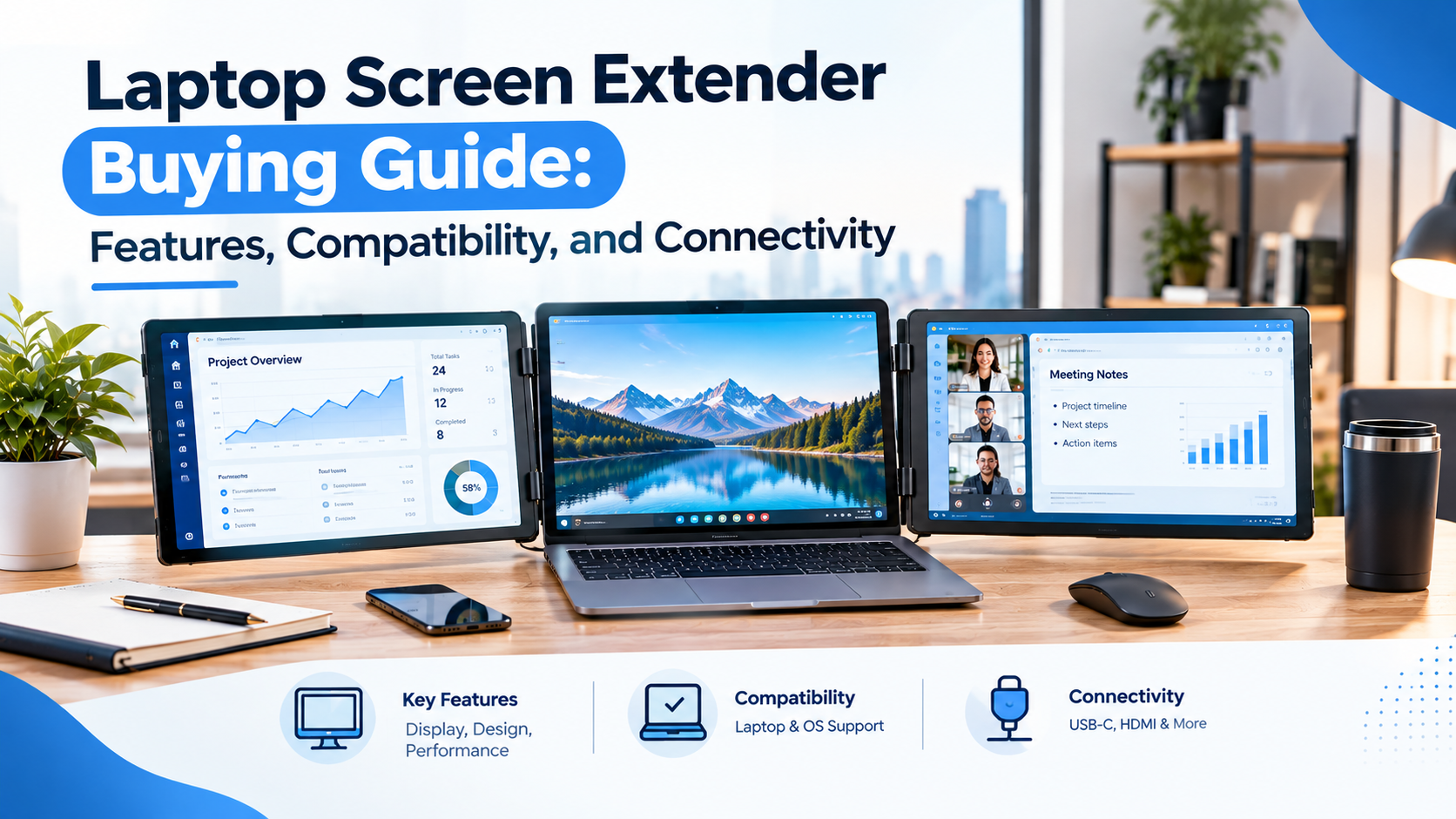
A laptop screen extender is an additional display or multi-screen accessory designed to increase the available screen space of a laptop. Depending on the model, it may attach to the sides of your laptop screen or function as a separate portable monitor.
Some models add one extra display, while others provide two additional screens to create a triple-screen workstation. These setups allow users to arrange applications across multiple displays rather than repeatedly switching between windows.
For example, a business professional can keep a video meeting open on one screen, presentation notes on another, and a spreadsheet on the laptop display. Similarly, a student can view research materials on one screen while writing an assignment on another.
Portable display solutions are particularly useful for remote workers, programmers, financial analysts, students, and content creators who need a flexible workspace.
Before selecting a product, consider how many screens you need and whether an attached extender or a standalone portable monitor better suits your working style.
1. Choose the Right Screen Size
Screen size is one of the first factors to consider when purchasing a laptop screen extender. The ideal size depends on your laptop dimensions, the type of work you perform, and how frequently you travel.
Portable displays are available in various sizes, with compact models designed for mobility and larger models providing more viewing space.
A smaller screen may be convenient if you regularly work in cafés, airports, or coworking spaces. A larger display may be more suitable for spreadsheets, programming, content creation, and tasks that involve viewing detailed information.
When evaluating screen size, consider these factors:
-
Laptop dimensions: Ensure that an attached extender fits your laptop's screen and chassis.
-
Workspace availability: Check whether the displays will fit comfortably on your desk or temporary workstation.
-
Portability: Consider the combined size and weight of the laptop, extender, cables, and accessories.
-
Viewing comfort: Choose a screen that makes text, charts, and application interfaces easy to read.
The goal is to find a balance between usable screen space and convenience. A large display may be attractive, but it is not necessarily the best choice if it makes your everyday travel routine difficult.
2. Compare Resolution and Display Quality
Display quality affects how comfortably you can work for extended periods. A screen with clear text, suitable brightness, and good viewing angles can make documents and applications easier to read.
Full HD resolution, typically 1920 × 1080 pixels, is a common option for portable displays used for office work, browsing, video meetings, and document editing. Higher resolutions may be beneficial for users who work with detailed images, complex designs, or applications that require greater visual clarity.
Here are the main display specifications to examine.
Resolution
Resolution determines the number of pixels displayed on the screen. Higher resolution can provide more detail, although the perceived sharpness also depends on screen size and display scaling.
Brightness
Brightness is important if you work in different environments. A display that looks good in a dim room may be difficult to see near a bright window or in a well-lit office.
Panel type
IPS panels are commonly preferred for productivity because they generally provide consistent colors and wider viewing angles.
Color accuracy
Designers, photographers, and video editors should pay attention to color reproduction and color gamut. For everyday office tasks, these specifications may be less important than readability and brightness.
Refresh rate
A standard 60Hz display is often sufficient for documents, spreadsheets, and routine office applications. Users with specialized animation or gaming requirements may prefer to compare higher refresh rates.
When choosing a display, prioritize the specifications that matter most to your workload rather than paying extra for features you may rarely use.
3. Check Laptop Compatibility Before Buying
Compatibility is one of the most important considerations in any laptop screen extender purchase. Not every laptop supports every multi-screen configuration, even when the available ports appear similar.
Start by identifying your laptop's exact model and reviewing its official specifications. Check the supported external display count, graphics capabilities, operating system requirements, and available connection types.
This is especially important when using a setup with two additional displays. Some laptops support multiple independent external monitors, while others have restrictions based on their hardware or operating system.
Before making a purchase, confirm the following:
-
Your laptop supports the required number of independent displays.
-
The monitor is compatible with your operating system.
-
The available ports support the necessary video signals.
-
Your laptop's physical dimensions suit an attached extender.
-
Any required drivers or additional adapters are supported.
MacBook users should pay particular attention to the exact model and processor because external display support varies across different generations. Windows laptop users should also verify the display limitations specified by the manufacturer.
A compatibility check before purchasing can help prevent connection issues and unnecessary returns.
4. Understand USB-C, HDMI, and Other Connectivity Options
Connectivity determines how easily you can connect the display to your laptop. Different products use different connection methods, and the correct option depends on the ports available on your computer.
USB-C connectivity
USB-C can simplify a portable workspace because a compatible connection may carry both video and power through one cable.
However, not every USB-C port supports video output. Your laptop's port must support a suitable video standard, such as DisplayPort Alt Mode or compatible Thunderbolt functionality, when required by the monitor.
Always check the specifications for your exact laptop model rather than assuming that a USB-C connector automatically supports display output.
HDMI connectivity
HDMI is a common video connection that can be useful when your laptop does not support video through USB-C. Depending on the monitor, you may need an additional USB connection or power adapter.
USB-A connectivity
Some display solutions use USB-A alongside compatible video hardware or software. These setups may require drivers or additional configuration, so check the manufacturer's instructions before purchasing.
Docking stations and adapters
A compatible dock or adapter can help connect displays when your laptop has limited ports. However, not every USB-C hub supports multiple independent displays, so confirm the dock's display capabilities and bandwidth requirements.
The most convenient connection method is one that works reliably with your laptop and minimizes unnecessary cables.
5. Consider Power Requirements and Battery Life
Portable displays need power, and the way they receive it can affect convenience and battery life.
Some models draw power directly from the laptop through a compatible USB-C connection. Others require a separate power adapter or additional USB connection. Multi-screen setups may consume more power than a single external display, particularly when the screens operate at higher brightness levels.
Before purchasing, determine whether the monitor can operate using your laptop's available power output. If you frequently work away from electrical outlets, consider how connecting the display may affect your laptop's battery runtime.
You should also check whether the monitor supports pass-through charging. On compatible devices, this feature can allow a charger to supply power to the laptop through the display or associated hardware.
Keep these points in mind:
-
Check the manufacturer's stated power requirements.
-
Confirm whether a power adapter is included.
-
Verify the supported charging wattage if pass-through charging is available.
-
Carry the necessary cables and adapters when traveling.
-
Test the setup before relying on it during important work.
Understanding power requirements helps ensure that your expanded workspace remains practical throughout the day.
6. Prioritize Portability and Build Quality
One of the main benefits of a portable display is the ability to create a larger workspace without carrying a traditional desktop monitor.
However, portability depends on more than the screen itself. The weight of the complete setup includes the display panels, cables, protective case, stands, and any adapters or power supplies.
Look for a design that is easy to pack, stable during use, and convenient to assemble. If you choose an attached extender, verify that its mounting system fits your laptop and does not interfere with the hinges, ports, or normal screen movement.
Useful features may include:
-
Lightweight construction.
-
Foldable or compact design.
-
Stable stands or secure mounting brackets.
-
Protective covers or carrying cases.
-
Accessible connection ports.
-
Adjustable viewing angles.
Build quality also matters if you frequently transport your equipment. Durable construction and appropriate protection can help reduce the risk of damage during everyday travel.
The best design is one that fits your working routine without making your laptop bag unnecessarily heavy.
7. Select a Configuration That Matches Your Workflow
Not every user needs the same number of displays. Your ideal configuration depends on the applications you use and the amount of information you need to view simultaneously.
Single additional display
A single portable monitor may be sufficient for students, writers, and professionals who mainly need space for a second application or reference document.
Dual-screen workspace
A laptop paired with one additional display can make it easier to manage email, documents, meetings, and research materials.
Triple-screen workspace
A laptop with two additional displays may benefit users who frequently manage several information sources, such as financial analysts, developers, project managers, and some content creators.
For example, a developer might use one screen for code, another for technical documentation, and the laptop display for testing. A financial analyst might keep spreadsheets, dashboards, and reports visible simultaneously.
More screens do not automatically guarantee better productivity. Choose a configuration that makes your regular tasks easier without adding unnecessary weight, complexity, or expense.
8. Evaluate Ease of Setup and Operating System Support
A good portable display should be straightforward to configure. Before purchasing, check whether it works through a native video connection or requires additional software.
Some displays can operate using supported USB-C or HDMI connections with minimal configuration. Others may require specific drivers or software to enable additional displays.
If software installation is necessary, confirm that it is compatible with your operating system and that you have permission to install it. This is particularly important for company-managed laptops, where security policies may restrict third-party drivers.
After connecting the display, you may need to adjust settings such as:
-
Extend or mirror display mode.
-
Screen resolution.
-
Display orientation.
-
Position of the screens in the operating system.
-
Text scaling and brightness.
Testing these settings before traveling or attending an important meeting can help prevent unexpected problems.
9. Compare Price, Warranty, and Overall Value
Price should be considered alongside performance, compatibility, and reliability.
A lower-priced model may appear attractive, but it could require separate adapters, additional cables, or accessories. A more expensive option may offer better build quality, more convenient connectivity, or a warranty that better suits your needs.
Before making your final decision, compare:
-
Display specifications and screen count.
-
Supported laptop models and operating systems.
-
Connectivity and power requirements.
-
Total weight and portability.
-
Included accessories.
-
Warranty coverage and customer support.
-
Return and replacement policies.
Consider the total cost of the setup rather than focusing only on the advertised price. This approach can help you choose a product that provides practical value over time.
Explore Laptop Display Solutions at AnyKingScreen
Expanding your laptop workspace can make multitasking more convenient and help you organize your daily work. Whether you need additional screen space for spreadsheets, online meetings, research, programming, or business travel, choosing the right display starts with understanding your requirements.
Before purchasing, review your laptop's compatibility, display capabilities, connectivity options, and power needs. Compare available designs and select a setup that matches your work habits, travel frequency, and budget.
If you are looking for ways to expand your laptop workspace, visit to explore portable display solutions. Review the available products and their specifications to identify an option that suits your laptop and everyday workflow.
With the right combination of display quality, compatibility, and portability, you can build a more flexible workspace for home, office, or travel.
Frequently Asked Questions (FAQs)
1. What is a laptop screen extender?
A laptop screen extender is an additional display or multi-screen accessory that expands the available screen space of a laptop. It helps users view multiple applications simultaneously and can be useful for work, study, travel, and multitasking.
2. How do I choose the right laptop screen extender?
Start by checking laptop compatibility, supported display count, screen size, resolution, connectivity, power requirements, and portability. Also consider warranty coverage, included accessories, and your budget.
3. Does a laptop screen extender work with every laptop?
No. Compatibility depends on the laptop's ports, graphics hardware, operating system, supported external display count, and the extender's requirements. Always check the specifications for both devices before purchasing.
4. Can I connect a laptop screen extender using USB-C?
Yes, if the laptop's USB-C port and the display support compatible video output. Some setups also use USB-C for power. A data-only USB-C port may not provide the video signal required by the monitor.
5. Can I use HDMI to connect a laptop screen extender?
Some models support HDMI connections. Depending on the product, you may also need a separate USB power connection or power adapter. Follow the manufacturer's connection instructions.
6. Does a laptop screen extender need external power?
Not always. Some models draw power from the laptop, while others require a separate power source. Multi-screen configurations may have higher power requirements, so check the product specifications.
7. Is a laptop screen extender useful for remote work?
Yes. An additional display can help remote workers keep meetings, emails, documents, and project management applications visible simultaneously. Its usefulness depends on your workflow and the applications you use.
8. Can I use a laptop screen extender with a MacBook?
Some models support MacBooks, but compatibility varies by model, processor, operating system, and external display limitations. Confirm support for your specific MacBook before buying.
9. What screen size is suitable for a portable display?
The right size depends on your viewing preferences, laptop dimensions, and travel needs. Smaller displays are easier to carry, while larger screens may provide more workspace for spreadsheets, coding, and detailed documents.
10. Is a laptop screen extender worth buying?
It can be a worthwhile investment if you regularly switch between several applications or need additional workspace while traveling. Compare the expected productivity benefits with the cost, compatibility requirements, and convenience of the complete setup.